


Accordions
Inserting accordions into an Article is an excellent way to break it up into more digestible chunks.
We use accordions extensively across our Joomla! User Guide.
We use the Accordions button included with the TinyMCE content editor to display accordions in Articles and Custom Modules.
How to insert Accordions
Accordions can be inserted into Articles using the TinyMCE Content Editor.
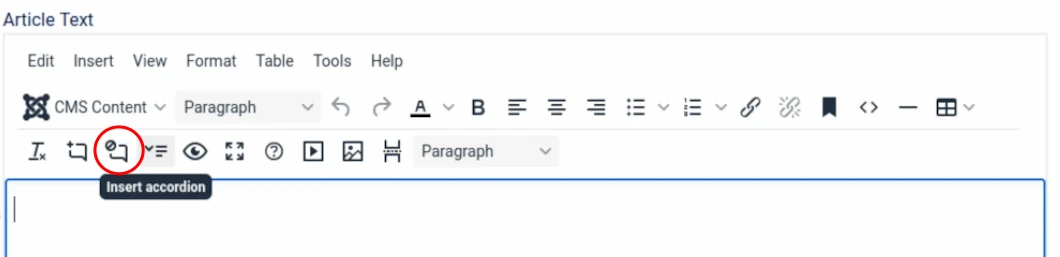
Place your cursor in the TinyMCE editor panel where you want the Accordion to be inserted.
Then click the Accordion button located in the bottom row of buttons at the top of the TinyMCE panel.
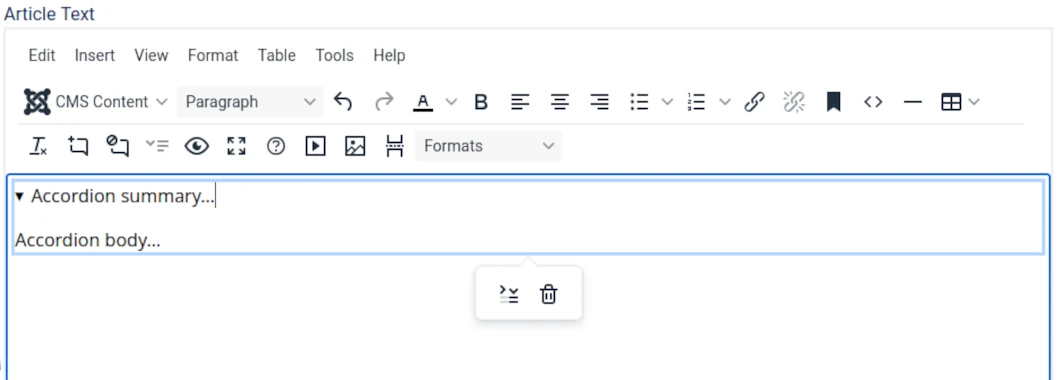
The inserted Accordion will look like this in the TinyMCE editor.
Note: WYSIWYG = What You See is What You Get.
WYSIWYG View
HTML View
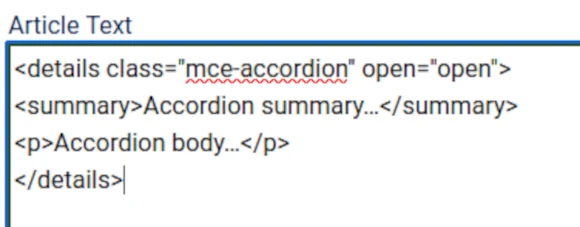
Accordion summary = the title of the Accordion when closed.
Accordion body... = the body of the Accordion when opened.
Tip: Use HTML View when editing Accordions.
You can switch to HTML View from the default WYSIWYG View using the Toggle Editor button.
HTML View may at first appear daunting but it will not take you long to learn how to edit text, images and links in this view.
We copy and paste HTML from the TinyMCE editor panel into a TXT file on a device, then make changes before pasting the resulting modified HTML into the Article.
No worries if when you get started you make a mess of things, the Versions button at the top of the Article (or Custom Module) screen will come to the rescue.
Visit the link below to learn how to use Version History to recover from making a mess of an Article or Custom Module.
Appearance of Accordions in the Front End
You can change the colour of the Accordion Summary text and background in the Template Styles screen of your website's Dashboard when you use a WYNCHCO Template Design.
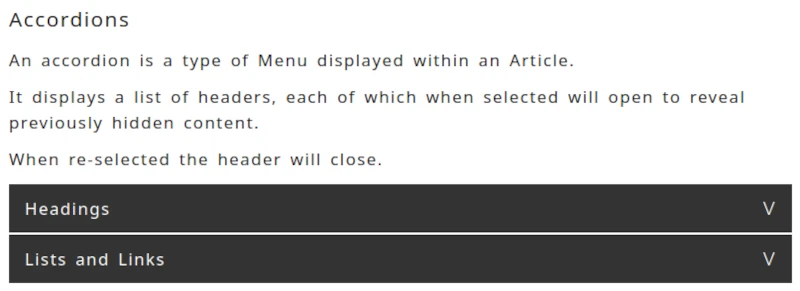
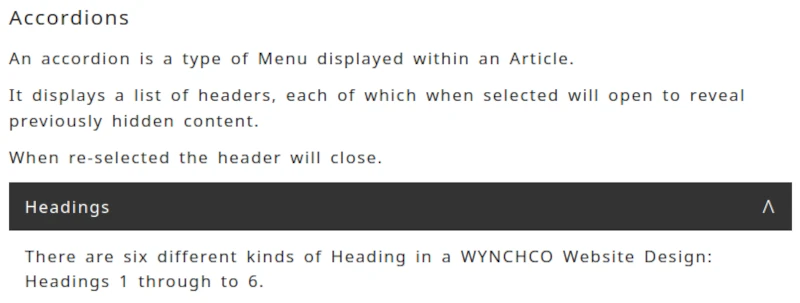
The following illustrations are using the default styles assigned by a WYNCHCO Template before you change its settings.
Closed
Open
Page Break Accordions
Use of Accordions to break up very long Articles into smaller chunks is also an option provided by the Page Break Plugin.


