Page Break Plugin

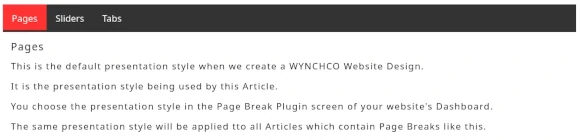
The Page Break Plugin enables you to divide very long Articles into smaller more digestible chunks using one of three different 'presentation styles':

  • Pages (default),
  • Sliders (Accordions) or
  • Tabs.

You can change the presentation style in the Plugins > Page Break Plugin screen of your website Dashboard.

Your choice of presentation style will be assigned to every existing and new Article which uses Page Breaks in your website.

Note: the same format (pages, sliders or tabs) is assigned to Page Breaks wherever they are used across your website.

Page Break Formats (or Presentation Styles)

Pages

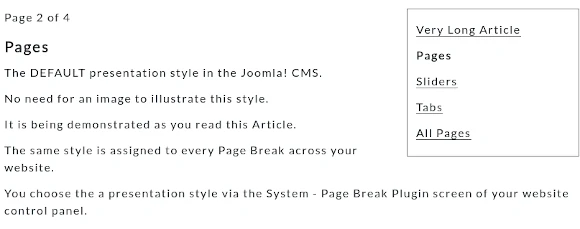
The Article you are reading right now is displayed using the Pages presentation style.

It differs from the image below by having an Article Index which is 100% wide.

The one in the image below (default in a WYNCHCO Website Design) is 30% wide.
Sliders (Accordions)

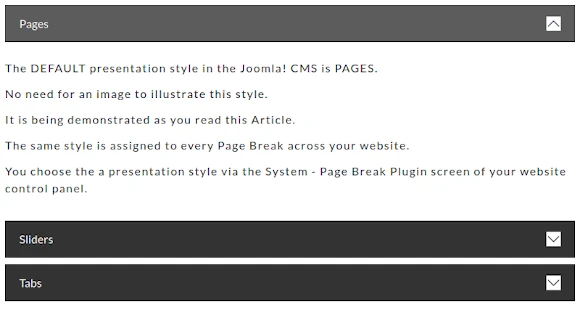
This presentation style is a great choice if your website comprises long Articles which will be read whilst people are on the move, using mobile devices with small screens.
sliders

Tabs

sliders

Which Format is most suitable for your website?

This will depend upon its purpose and the needs of your target audience.

The Joomla! Community Magazine (JCM) includes a useful article which compares the different formats.

Read more: Explore the Core Page Break Plugin (April 2024 JCM)

How to insert Page Breaks

Page Breaks can be inserted into Articles using the TinyMCE Content Editor.

Place your cursor in the TinyMCE editor panel where you want the Page Break to be inserted.

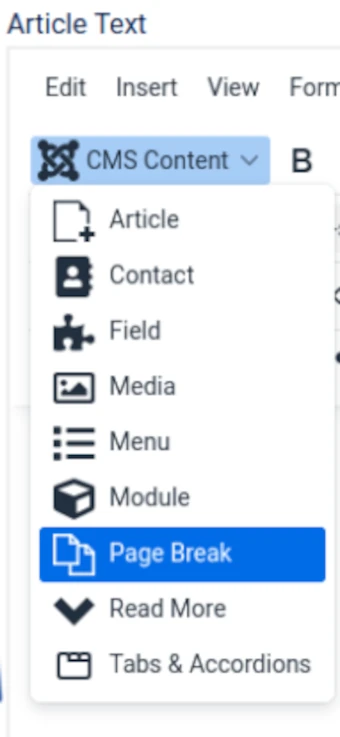
Then click the CMS Content button located at top left of the TinyMCE panel.

A dropdown menu will appear.

Select the Page Break link.

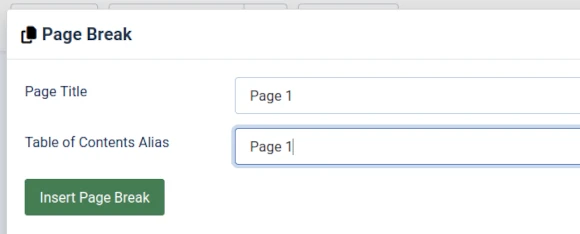
A pop-up window will be displayed.
Insert page break 1

In the pop-up window, enter the same text in both fields.

The text will be used in the Article Index (slider or tab).

Example: Page 1.

Select the Insert Page Break button.
Insert page break 2

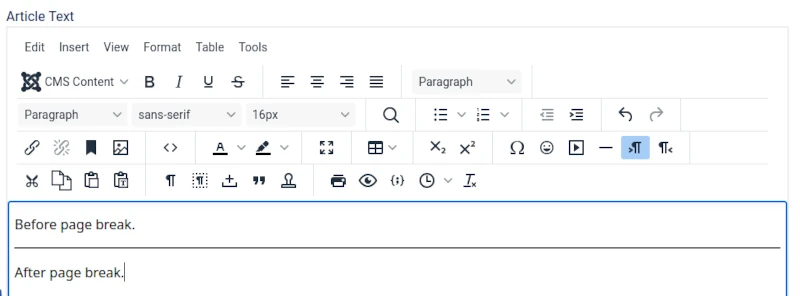
Result: the Page Break will be displayed in the TinyMCE editor panel as a line.
Insert page break 3

How to change Presentation Style

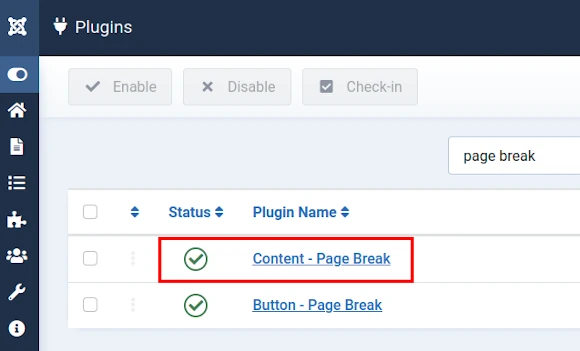
Open the Content - Page Break Plugin screen.

  1. Select Plugins from the Manage panel of the System Dashboard.
  2. Then select Content - Page Break.

plugins page break 1

When you do you can:

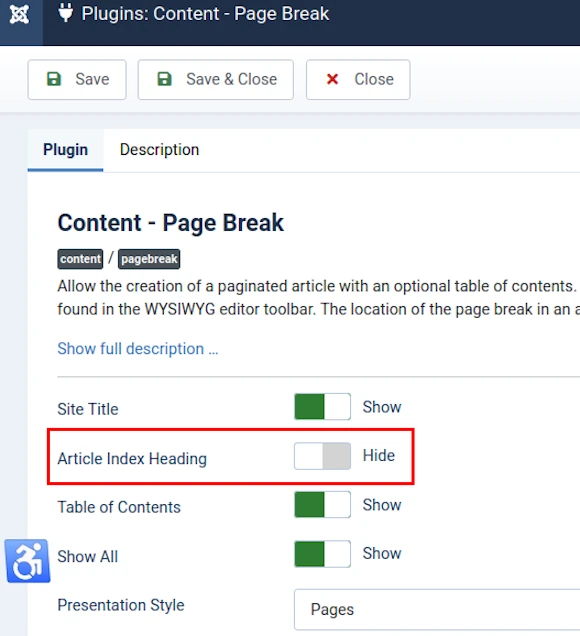
  1. show the Article Index Heading (default = hide),
  2. change the name of the Article Index Heading, and
  3. change the Presentation Style (default = Pages).

In a WYNCHCO Website Design we change these default Joomla! CMS settings to the ones shown in the image below.

You can easily change them again via the Page Break Plugin screen in your website's Dashboard.
plugins page break 2

Article Index Heading

By default in a WYNCHCO Website Design the Article Index Heading is hidden.

Display of the Article Index Heading throws an Accessibility Warning post Joomla! 4.3.

Reason: out of sequence Heading Tag.

The Article Index Heading is not however essential.

When it is not displayed then the first item listed in the Article Index will be the Article Title.

Article Index Format

In a WYNCHCO Website Design the Article Index, when used, fills 30% of the width of an Article.

And it is always displayed at the top of an Article.

However, in this website the Article Index width fills 100% of the width of an Article.

And it is only displayed above an Article on large screen devices (example, laptops).

On small screen devices (example, phones and tablets) it is displayed below an Article.

If you need help changing how the Article Index is displayed in your website, just ask.

Page Break Plugin

The Page Break Plugin enables you to divide very long Articles into smaller more digestible chunks using one of three different 'presentation styles':

  • Pages (default),
  • Sliders (Accordions) or
  • Tabs.

You can change the presentation style in the Plugins > Page Break Plugin screen of your website Dashboard.

Your choice of presentation style will be assigned to every existing and new Article which uses Page Breaks in your website.

Note: the same format (pages, sliders or tabs) is assigned to Page Breaks wherever they are used across your website.

Page Break Formats (or Presentation Styles)

Pages

The Article you are reading right now is displayed using the Pages presentation style.

It differs from the image below by having an Article Index which is 100% wide.

The one in the image below (default in a WYNCHCO Website Design) is 30% wide.

Sliders (Accordions)

This presentation style is a great choice if your website comprises long Articles which will be read whilst people are on the move, using mobile devices with small screens.

sliders

Tabs

sliders

Which Format is most suitable for your website?

This will depend upon its purpose and the needs of your target audience.

The Joomla! Community Magazine (JCM) includes a useful article which compares the different formats.

Read more: Explore the Core Page Break Plugin (April 2024 JCM)

How to insert Page Breaks

Page Breaks can be inserted into Articles using the TinyMCE Content Editor.

Place your cursor in the TinyMCE editor panel where you want the Page Break to be inserted.

Then click the CMS Content button located at top left of the TinyMCE panel.

A dropdown menu will appear.

Select the Page Break link.

A pop-up window will be displayed.

Insert page break 1

In the pop-up window, enter the same text in both fields.

The text will be used in the Article Index (slider or tab).

Example: Page 1.

Select the Insert Page Break button.

Insert page break 2

Result: the Page Break will be displayed in the TinyMCE editor panel as a line.

Insert page break 3

How to change Presentation Style

Open the Content - Page Break Plugin screen.

  1. Select Plugins from the Manage panel of the System Dashboard.
  2. Then select Content - Page Break.

plugins page break 1

When you do you can:

  1. show the Article Index Heading (default = hide),
  2. change the name of the Article Index Heading, and
  3. change the Presentation Style (default = Pages).

In a WYNCHCO Website Design we change these default Joomla! CMS settings to the ones shown in the image below.

You can easily change them again via the Page Break Plugin screen in your website's Dashboard.

plugins page break 2

Article Index Heading

By default in a WYNCHCO Website Design the Article Index Heading is hidden.

Display of the Article Index Heading throws an Accessibility Warning post Joomla! 4.3.

Reason: out of sequence Heading Tag.

The Article Index Heading is not however essential.

When it is not displayed then the first item listed in the Article Index will be the Article Title.

Article Index Format

In a WYNCHCO Website Design the Article Index, when used, fills 30% of the width of an Article.

And it is always displayed at the top of an Article.

However, in this website the Article Index width fills 100% of the width of an Article.

And it is only displayed above an Article on large screen devices (example, laptops).

On small screen devices (example, phones and tablets) it is displayed below an Article.

If you need help changing how the Article Index is displayed in your website, just ask.

By browsing our website you agree to its use of cookies. Cookie Policy.