


How to create and edit Categories
A Category is a container for organising Articles.
Before you can create a new Article you need a Category to put it in.
Follow the steps below to create a new Category.
Nested Categories
The Category you create can be held in another Category if you wish.
Categories within categories are called nested categories.
Front End vs Dashboard
Categories can be created after logging into your website's Dashboard.
Categories cannot be created after logging into the Front End.
How to create a Category
Open the Categories screen
Select the Article Categories button from the Site panel in your website's Dashboard.

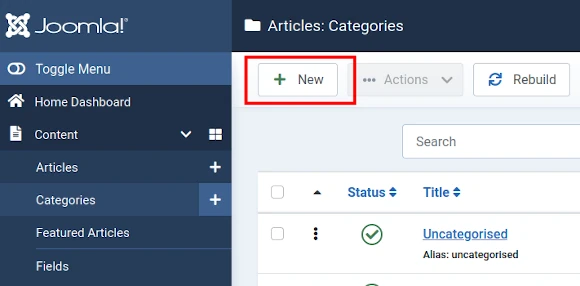
Select New Category Button
How to edit a Category Introduction
You can add content to a Category's Introduction after signing into your website's dashboard.
First, select the Category to be edited from the Categories screen.
The Category tab will open by default, enabling you to use the Content Editor to insert text and images.
Category tab
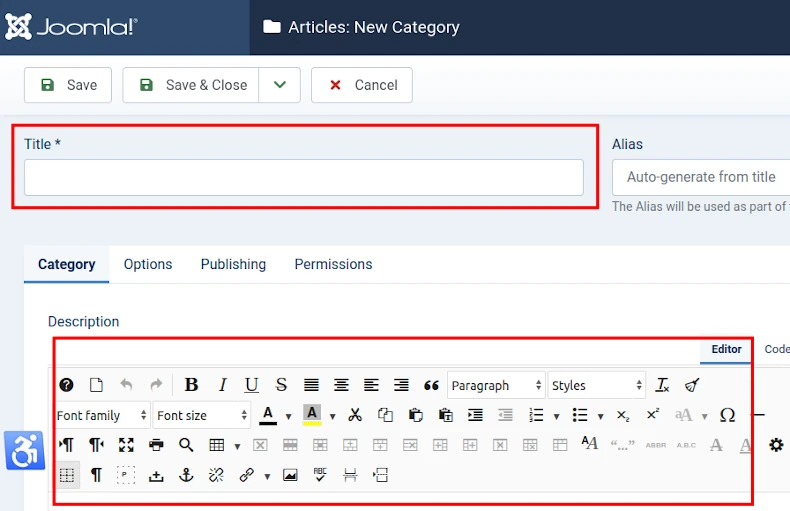
Left side of screen (landscape view)
Add a Category Title.
The Category Title will be displayed in the Front End as a Heading 1.
Add some text and maybe an image.
Right side of screen (landscape view)
Change the settings as required for your website.
See comments below.
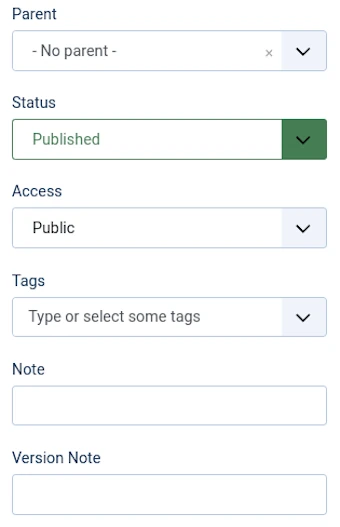
Status
Default = Published.
Select Unpublished if you wish to delay publishing.
You could alternatively set a future publishing date under the Publishing tab.
Access
Default = Public.
Determine who can see the Category when published.
Public means that all visitors to your website will be able to read the Category introduction (either via a Menu Link or using the Smart Search Module).
Change the status (for example: to Registered User) to require that visitors sign in to read the Category introduction.
Tags
Content Tags enable you to link Categories of a similar topic to one another.
The Tag will be displayed in the Front End.
When selected by a visitor, a list of Categories and Articles (bearing the same Tag) will be displayed.
Note
This is a really useful field if you want to focus your own or a fellow administrator's attention to how you have configured this Category.
The Note will not be published in the Front End.
Version Note
The Version Note field enables you to add a note relevant to this version of the Category.
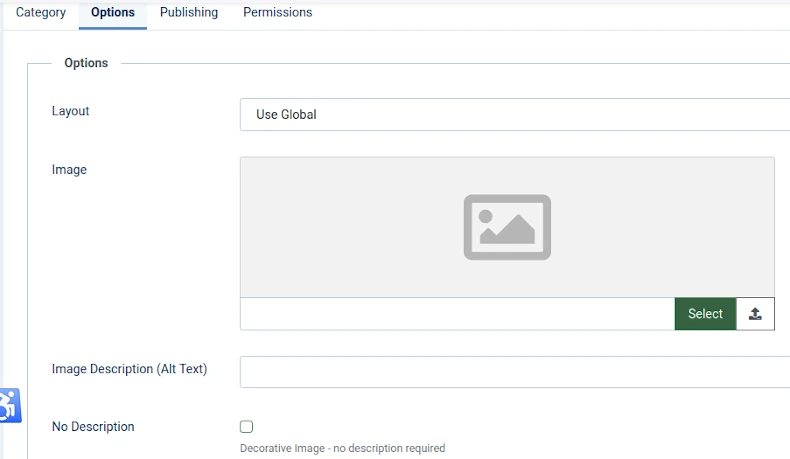
Options tab
Note
If you choose to insert an image using the Options tab then the default properties of the inserted image will be:
- alignment = bottom, meaning that text is pushed below the image, and
- bottom margin = 0px, meaning no space between the image and following text.
Also, the image will by default be displayed above any text you insert using the Content Editor panel under under the Category tab.
For these reasons, we recommend not using the Options tab to insert images.
Use the Content Editor panel under the Category tab instead.
Publishing tab
Left side of screen (landscape view)
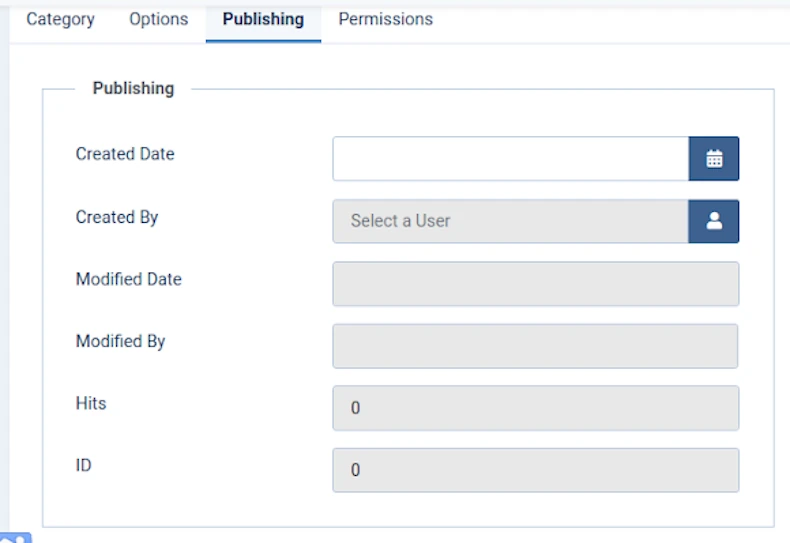
Dates
Toggle the date fields when you want to set a start and end date for your Category to be published.
Right side of screen (landscape view)
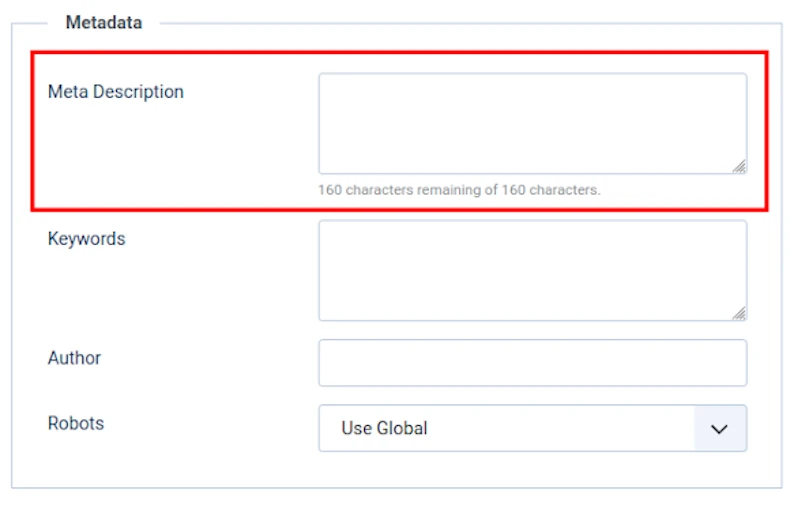
Meta Description
Using this field should help to make any text included in your Category Introduction more prominent in search engine results.
If you do nothing else, copy and paste the first sentence from your Category Introduction into this field.
Better still, make sure the first sentence includes keywords that you want the introduction to be found for.
Permissions tab
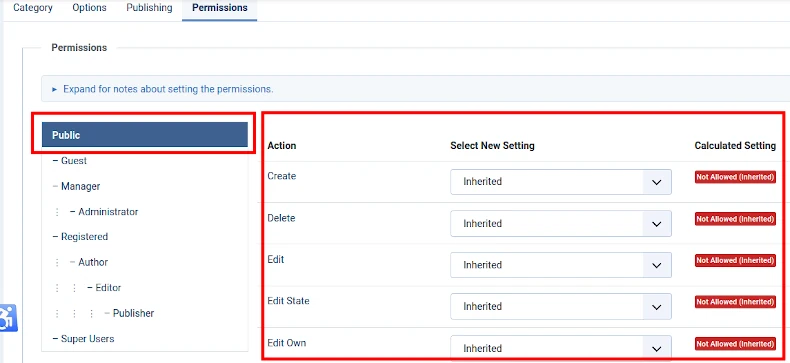
Note
We recommend NOT changing the default settings if you are not an advanced user,
To change these settings could compromise your website's security.


