How to create and edit a Menu Link
Create a Single Article Menu Link
The Single Article Menu Item is the most commonly used type of Menu Link.
When a visitor clicks the link. the linked Article will be displayed in the Main Body of your website.
Open the Menus Items Screen
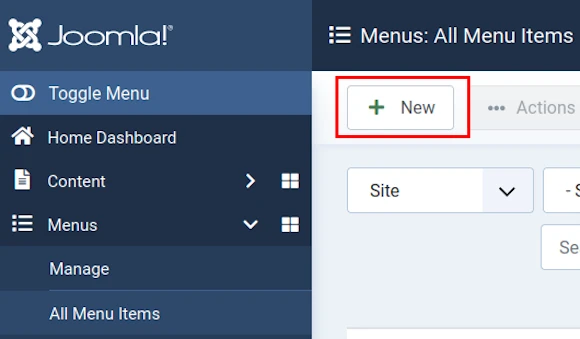
Select Menus button from the sidebar in your website's Dashboard.
Then select All Menu Items.

Select New Menu Item
Category Menu Links
There are two main types of Menu Item you can use to link to a Category (for example: Blog) in the Joomla! CMS.
Category Blog Menu Link
The Category Blog Menu Link will display a linked Category in the form of a blog.
When a visitor clicks the link. the introduction to several linked Articles (in a Category) will be displayed in the Main Body of your website.
Example Blog Display
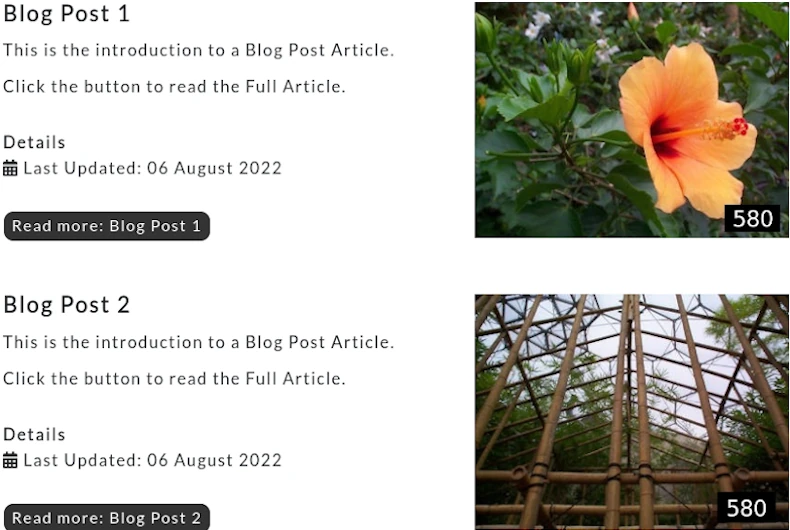
Image below shows how the introduction to several Blog Posts can be displayed when a Category Blog Menu Link is selected.
This example shows the Blog when viewed in Landscape View.
The images are displayed on the right, but they could instead be displayed on the left or both (first left, then right, and so on).
Category List Menu Link
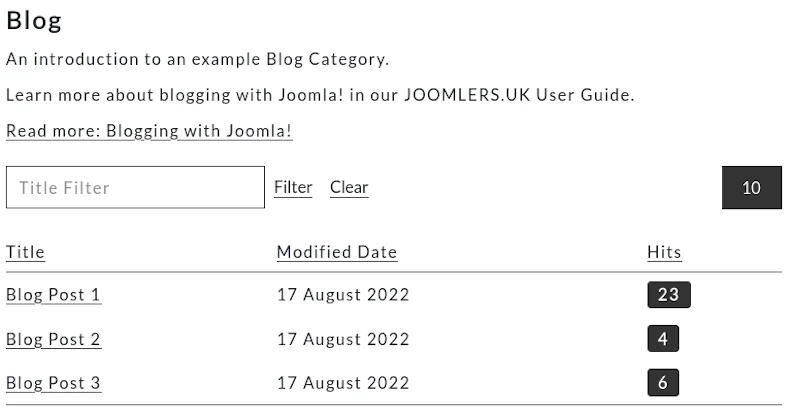
The Category List Menu Link will display a linked Category in the form of a list.
How to edit a Menu Link
The images shown below relate to a Single Article Menu Link.
We explore Blog Menu Links in our separate Blogging with Joomla! article.
If you need help with any other kind of Menu Link, just ask.
Details tab
Change the settings as required for your website.
See comments below.
Left side of screen (landscape view)
Change the settings as required for your website.
See comments below.
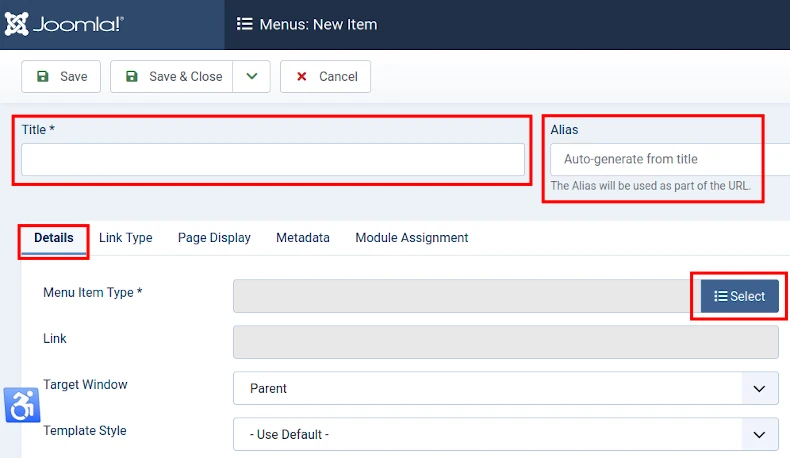
Menu Title
The name of the Menu Item as presented in your chosen menu.
Alias
The Alias will self-populate with a browser-friendly version of the Menu Title you enter, unless you enter something different.
In the Front End the Alias will form part of the URL in the address bar when the Menu Link is selected.
It will not be visible on the web page itself.
If you change it you may wish to add one or more keywords not included in the Menu Title.
Example: geographic location.
Menu Item Type
For example: Single Article.
Read more: Types of Menu Item.
Template Style
If your website has more than one Template then you can toggle the Template Style setting to choose a Template to control the appearance of the linked web page.
Otherwise the Default Template will be selected.
Right side of screen (landscape view)
Change the settings as required for your website.
See comments below.
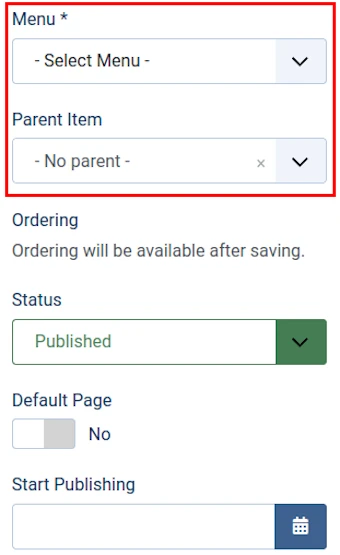
Menu
Browse to choose a Menu to display the Menu Item.
Parent Item
Toggle the Parent Menu Link setting to find a Parent if the link is a Sub Menu Link.
Ordering
After saving the Menu Link you may change the Ordering setting.
New Menu Links will by default be displayed after all existing Menu Links in a Menu.
Toggle the Ordering setting to choose the Menu Link which will precede this Menu Link.
Status
Default = Published.
Select Unpublished if you wish to delay publishing.
You could alternatively set a future publishing date - see next.
Dates
Toggle the date fields when you want to set a start and end date for your Menu Link to be published.
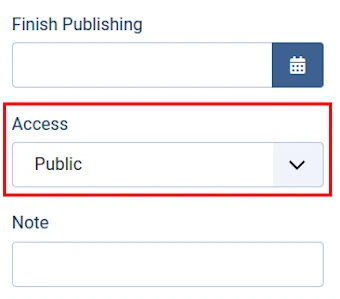
Access
Default = Public.
Determine who can see the Menu Link when published.
Public means that all visitors to your website will be able to see the Menu Link.
Change the status (for example: to Registered User) for the Menu Link to be hidden until a user signs in.
Note
This is a really useful field if you want to focus your own or a fellow administrator's attention to how you have configured this Menu Link.
Link Type tab
The Link Type tab enables you to:
- assign styles to Menu Links, and
- prefix an image to a Menu Item, making a text link an image link.
More in the next section of this article for how to add an image prefix to a Menu Link.
Read more: Working with Image Menu Links.
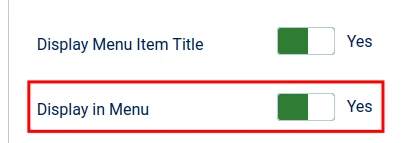
This tab also offers you the option to hide a Menu Link from a Menu.
To do so, change Display in Menu from Yes to No.
Be aware that the linked content will still be visible in Search Results unless it's access level is changed from Public to Registered or Special.
Note: changing 'Display in Menu' for a published Menu Link to No could be confusing if a few months down the line you begin to wonder why the link is not visible in the website Front End when it is 'published'.
We do not change 'Display in Menu' to No in our own websites.
When we want to hide a Menu Link from public view then we either unpublish it or change its access level to one that is not public.
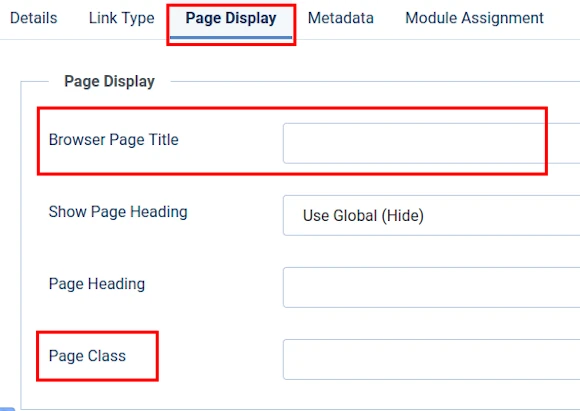
Page Display tab
The Page Display tab is important for SEO.
It enables you to add the following to the Menu Item:
- Browser Page Title, and
- Page Heading.
We explain the importance of Browser Page Title and Page Heading in our WYNCHCO SEO Guide.
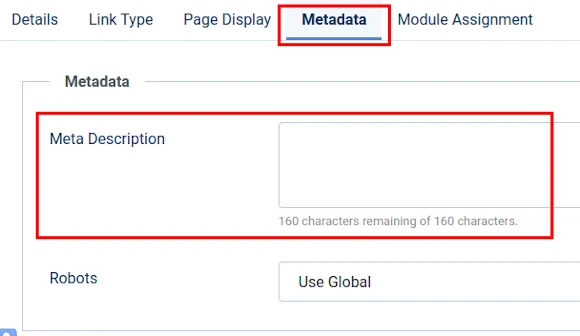
Metadata tab
Meta Description
If you are populating this field under the Publishing tab when creating and editing Articles and Category introductions then this field is redundant.
Read more: How to create and edit Articles.
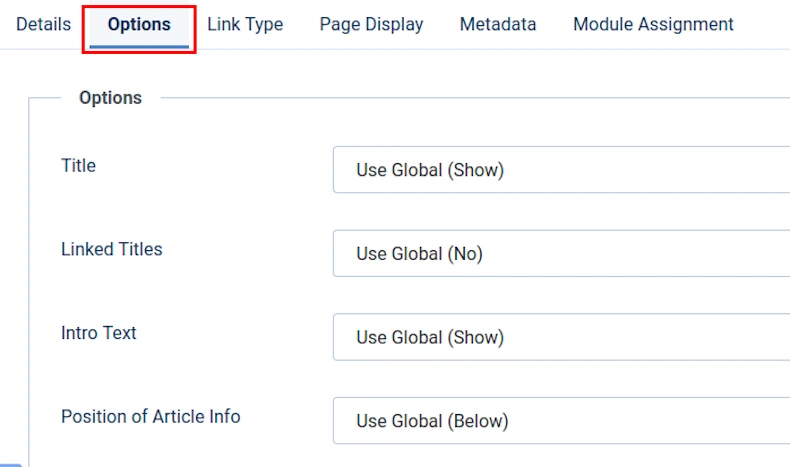
Options tab - visible after you have created a Menu Link
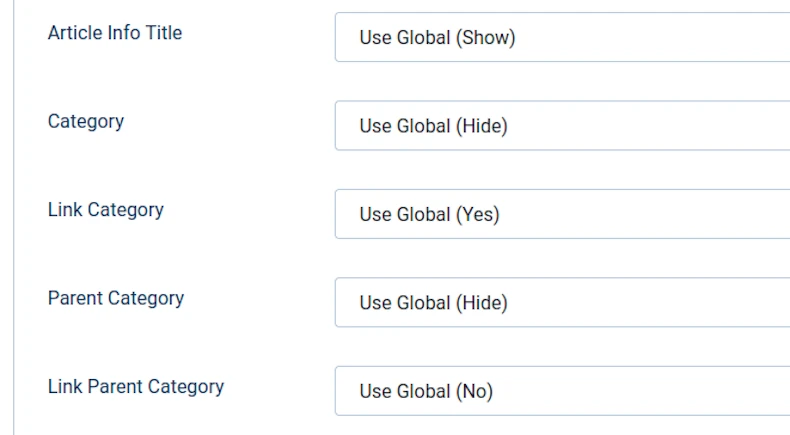
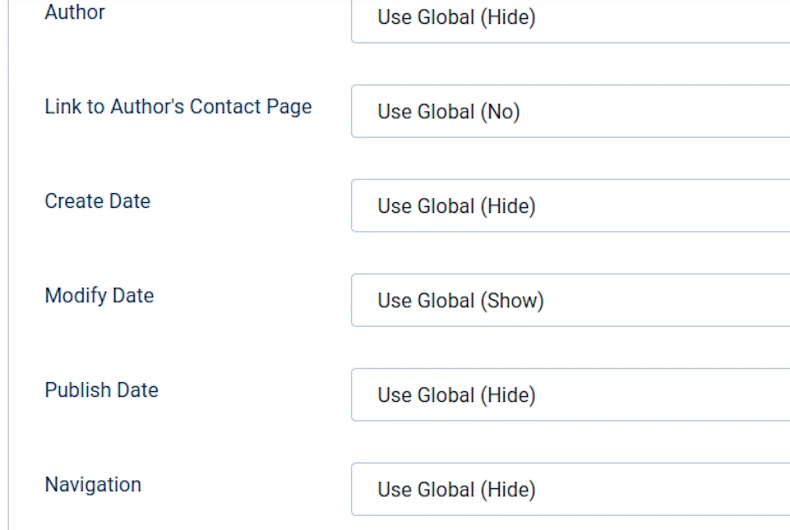
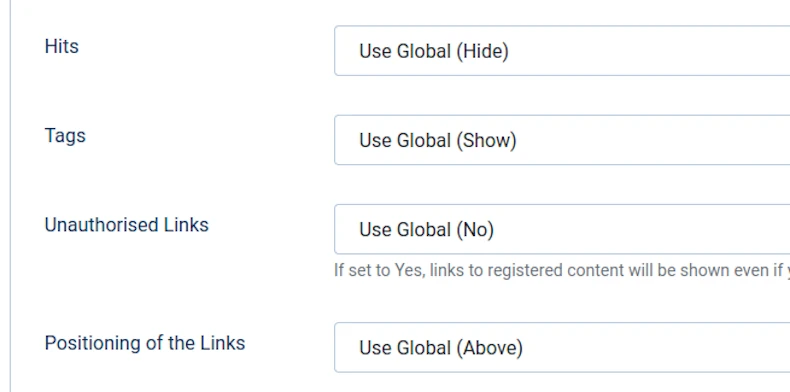
The Options tab enables you to override the Global Settings for presenting Articles.
For example, you may wish to show the Author for the linked Article when the Global Settings are to hide the name of the Author.