How to duplicate a Module

Daunted at the prospect of creating a new Module?

No worries.

WYNCHCO Website Designs include lots of exemplar Modules which have been pre-assigned by:

  • Position, and
  • Menu Link.

Look for an existing Module that appears similar to one that you want to create.

Duplicate it.

And then tweak its settings as required.

How to duplicate a Module

Open the Modules screen of your website's Dashboard.

Select the check box next to an existing Module you want to duplicate.

The image below shows the check box next to a Banner Module has been selected.

Next, click the Actions button at the top of the screen.

Then, select Duplicate from the drop-down menu which appears.

modules duplicate

An exact copy of the Module you selected will be created.

And will be listed next to the original Module in the Modules screen.

You may then change its settings and publish it.

Example: Duplicated Menu Module

Having duplicated a Menu Module, you will most likely want to change the Select Menu setting.

And change the Module Title to reflect the new choice of Menu to be displayed.
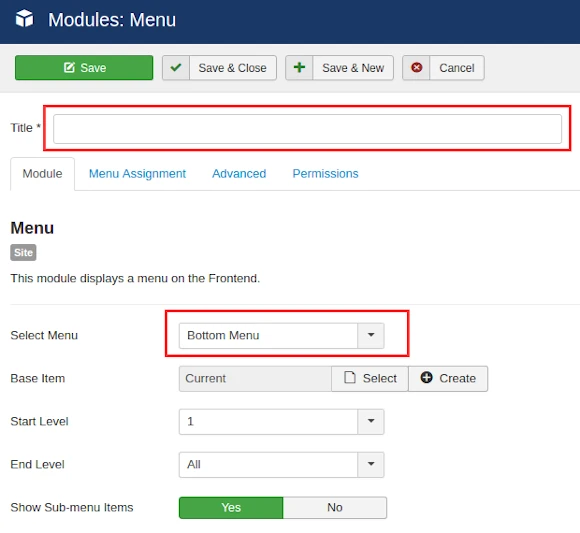
menu module tab

Example: Duplicated Custom Module

Having duplicated a Custom Module, you will most likely want to change text and images.

And change the Module Title to reflect the new content.

custom module add content

Why duplicating Modules makes sense

The Look & Feel of a Module is determined by the Style Sets assigned to it.

Assigning Style Sets can be confusing, and therefore time-consuming.

When you duplicate a Module you will not need to think about assigning a Style Set to it.

Reason: the duplicated Module will inherit the settings of the original.

This is why we include lots of exemplar Modules in a WYNCHCO Website Design.

How to duplicate a Module

Daunted at the prospect of creating a new Module?

No worries.

WYNCHCO Website Designs include lots of exemplar Modules which have been pre-assigned by:

  • Position, and
  • Menu Link.

Look for an existing Module that appears similar to one that you want to create.

Duplicate it.

And then tweak its settings as required.

How to duplicate a Module

Open the Modules screen of your website's Dashboard.

Select the check box next to an existing Module you want to duplicate.

The image below shows the check box next to a Banner Module has been selected.

Next, click the Actions button at the top of the screen.

Then, select Duplicate from the drop-down menu which appears.

modules duplicate

An exact copy of the Module you selected will be created.

And will be listed next to the original Module in the Modules screen.

You may then change its settings and publish it.

Example: Duplicated Menu Module

Having duplicated a Menu Module, you will most likely want to change the Select Menu setting.

And change the Module Title to reflect the new choice of Menu to be displayed.

menu module tab

Example: Duplicated Custom Module

Having duplicated a Custom Module, you will most likely want to change text and images.

And change the Module Title to reflect the new content.

custom module add content

Why duplicating Modules makes sense

The Look & Feel of a Module is determined by the Style Sets assigned to it.

Assigning Style Sets can be confusing, and therefore time-consuming.

When you duplicate a Module you will not need to think about assigning a Style Set to it.

Reason: the duplicated Module will inherit the settings of the original.

This is why we include lots of exemplar Modules in a WYNCHCO Website Design.

By browsing our website you agree to its use of cookies. Cookie Policy.