


Email Client Settings
The security and privacy settings of the Email Client you use can usually be tightened to improve the protection of your Personal Data, your Hosting Account and your Website.
There are many different Email Client applications available for you to use.
We like Thunderbird.
If you use Thunderbird and want to review how you can tighten its privacy and security settings then you may find the next section useful.
The settings described in this article should also provide some pointers for tightening the settings in all Email Clients.
Thunderbird Email Client Settings
At the time of writing we use the settings shown below.
Whilst not all the settings below will be appropriate to your circumstances, they should provide pause for thought.
We recommend that you periodically review your Email Client's privacy and security settings.
SSL/TLS Connection
For each Email Account we change the Connection Security setting from None to SSL/TLS.
"Encrypt everything. To prevent your data from being intercepted or tampered with, enforce HTTPS and TLS across all web traffic."
Source: The Hacker News man in the middle attack prevention guide
SSL/TLS requires use of an SSL certificate with your email domain.
Responsible hosting providers offer free use of the Let's Encrypt SSL Certificate.
Benefit: peace of mind.
Reason: email content, mailbox username and mailbox password are encrypted during transit.
Privacy
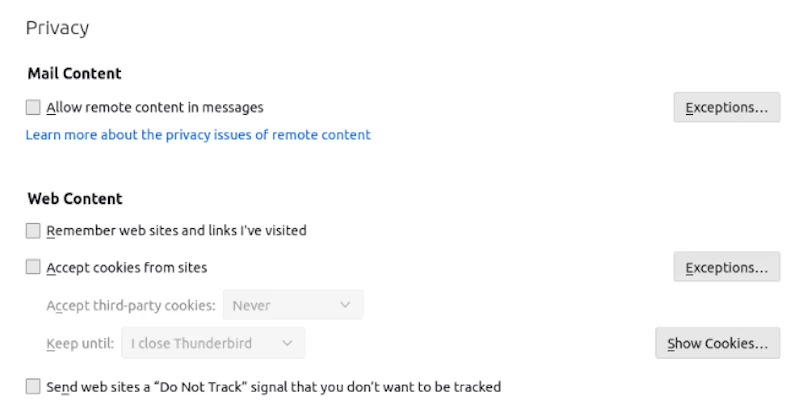
Settings shown:
- block automatic loading of remote content,
- block the application from storing search history, and
- prevent the acceptance of cookies from websites.
Passwords
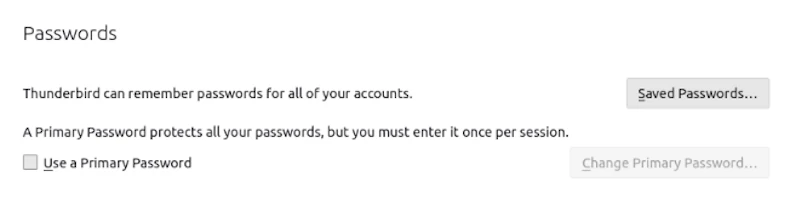
Password remembering can be disabled but is not a good idea.
Reason: it prevents the application from storing email account passwords.
Of course, if you have only one email account, blocking the storage of email account password is more feasible.
To view and remove stored passwords, select Saved Passwords.
Junk
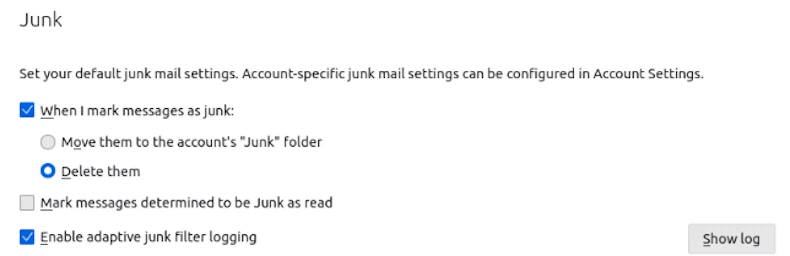
It is more productive for the application to automatically delete email identified as junk.
You can still review deleted junk before emptying the Deleted folder.
And mark junked mail as Not Junk as the need arises.
Enabling adaptive junk filter logging should improve productivity when dealing with mail.
Data Collection
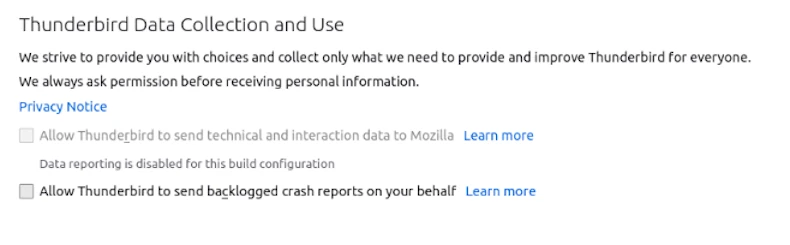
We choose not to automatically share technical and interaction data with anyone, including the application developer.
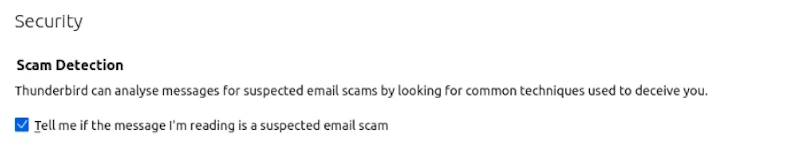
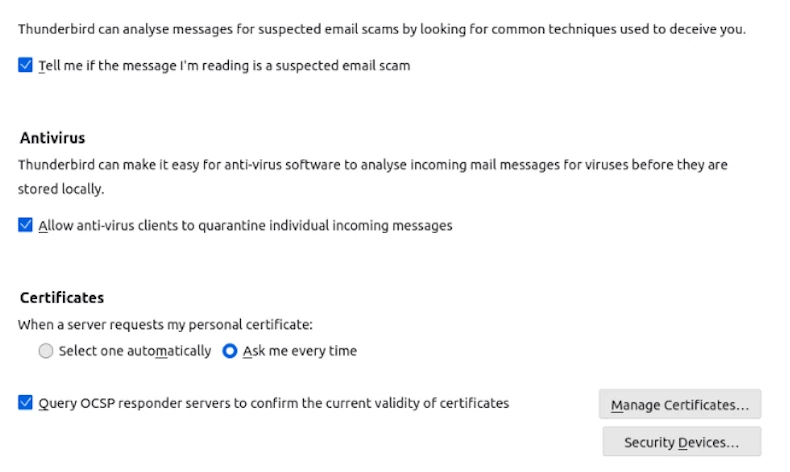
Security
More Useful Advice
Never click on links embedded in emails from sources you neither know nor trust.
Never enter your login details directly from email links.
Never reply to spam or click on unsubscribe links unless you trust the sender is genuine. Instead mark the mail as junk.
Never assume a known source is the person you think it is.
Always use caution when clicking on email links, especially shortened URLs.
You can check the authenticity of a shortened URL before visiting it using a link expander (example: wheregoes.com).
Never open attached files without scanning for viruses and malware.
Use an SSL Certificate with your Email Domain
If you are using email accounts with your website domain then we encourage you to protect your email and website traffic by adding an SSL Certificate to your domain.
Most web hosting providers offer the option of adding a free Let's Encrypt SSL Certificate to your domain.
Protect yourself from Phishing attacks
The NCSC (UK National Cyber Security Centre) provide useful guidance for how to recognise and report emails, texts, websites, adverts or phone calls that you think are trying to scam you.
Read more: Spot and report scam emails, texts, websites and calls
Report Fraud
If you think you may have been the victim of fraud or cybercrime and incurred a financial loss or have been hacked as a result of responding to a phishing message, you should report this to Action Fraud.
Report Fraud, previously called Action Fraud, "is the place to tell the police about cyber crime and fraud. The service is run by the City of London Police. The City of London Police is the national policing lead for economic crime and works in partnership with policing and other law enforcement agencies."
Protect Yourself from Quishing or QR Code Scams
Follow some basic rules and avoid quishing or QR code attacks.
- Don’t open links or scan QR codes from strangers.
- Check the link and the destination.
- Think twice about following shortened links.
- Watch out for tampering in physical spaces, like car park signs.
- Avoid QR code reading apps as they can be a security risk.
- Don’t pay bills with QR codes.
Source: USA Better Business Bureau.
Protect Your Inbox with a Duck Dot Com forwarding address
Remove trackers and protect your email address.
What if you receive bounce back messages for emails which you never sent?
If you start to receive lots of bounce-back messages for emails which you never sent, it is possible that a spammer has access to your mailbox.
There are two main ways this could have happened:
- they have guessed your passord by brute force, or
- they have captured your password using malware from either your computer or a 3rd party computer you have used to access email.
Take the following steps:
- Change the mailbox password.
- Run antivirus and malware scans on all computers used to connect to the affected mailbox.
- Consider deleting the affected mailbox.


