


How to back up email
When using POP Protocol
If you are managing email using POP Protocol then you are most likely storing all your mail on one device - your desktop computer.
You run the risk of losing all your stored email if your computer is damaged or stolen.
In this instance, regularly backing up of your email to an external drive will reduce this risk.
Backing up an Email Client is also useful for users of the IMAP Protocol if you are regularly removing old mail from the server to avoid using up all available disk space (see the IMAP Protocol section below).
Backing up an Email Client may vary depending upon:
- the version of the application you are using, and
- your device's operating system.
If you have never before backed up your Email Client then we recommend you refer to the relevant user guide for your Operating System (OS) and Email Client before getting started.
How you can back up mail using Thunderbird on the Linux OS
It is a good idea to periodically back up your Thunderbird Profile.
This involves making a copy of the Thunderbird Profile from a system folder, and pasting it into a separate location (a non-system folder), where it can be compressed (zipped) and then copied to an external drive.
And to test restore the backed up profile using an old computer, just to be sure you can rely on the backup should you ever need to.
Linux Users
System files on the Linux operating system are 'hidden'.
To view system files, we open the File Manager screen.
Select View > Show Hidden Files.
Scroll down and click on the .thunderbird folder to open it and see the Thunderbird Profile.
The Thunderbird Profile is named using syntax like this:
- lettersnumbers.default.
We copy this folder and paste it into a non-system folder.
We then compress (zip) the backup folder and transfer the ZIP file to an external drive.
When using IMAP Protocol
When you use IMAP Protocol, your email is stored in the respective Mailbox on the Mail Server.
You should periodically back up your email to avoid using up all available disk space included within your hosting account, and also to avoid becoming the victim of an irrecoverable catastrophe affecting the Mail Server.
Backing up can be done in one of two ways:
- on the server (and subsequent download of the backup to your computer), or
- on your computer using your favourite Email Client.
We do not recommend the first option because it requires that you:
- sign into your hosting account control panel,
- familiarity with using File Manager.
We recommend the second option because most users are familiar with using an Email Client.
Backing up mail from the server using an Email Client is straightforward, but you should be aware that:
- the process involves physically moving email from the Mailbox on the Mail Server to a folder (or folders) on your Email Client;
- next time you connect to the Mailbox on the Mail Server from any device then the email you have backed up will not be there.
Before you get started, open your Email Client.
Example: how to back up mail using Thunderbird
After opening Thunderbird, look for Local Folders.
It is into Local Folders that you will DRAG email from the Mailbox on the Mail Server in order to complete the backing up process.
STEP 1: Create folders under LOCAL FOLDERS
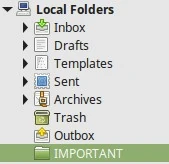
The image below shows a highlighted folder under LOCAL FOLDERS called IMPORTANT.
This folder has been created to store backed up email.
Note: anything listed under LOCAL FOLDERS is ON your computer and NOT ON the Mail Server.
To be avoided
Don't fall into the trap of creating a folder to drag backed up email to within the Email Account section of your Email Client (if using IMAP Protocol).
Reason: everything in that section is ON the Mail Server.
STEP 2: Drag email into the IMPORTANT folder
Drag a complete folder (complete with email stored within it) or highlight and drag one or more emails from within a folder.
The image below shows several emails (highlighted) ready for being dragged into the IMPORTANT folder.
Alternative method: use right-click on mouse to use the MOVE function (see text on image).
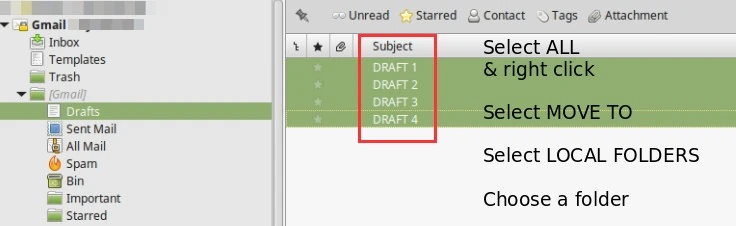
Once dragged (moved) into the IMPORTANT folder the emails are backed up.
In other words, they are OFF the Mail Server.
You can now back up the Email Client (including backed up files) to an external drive as a precaution against your computer or Email Client not working at some future date.


