


FileZilla is a free open source FTP solution.
It supports FTP over TLS (FTPS) and Secure File Transfer Protocol (SFTP).
Before you first connect to the server using an FTP Client like FileZilla you will need to download and install it on your device.
Then check your website has a valid SSL Certificate.
And finally, discover what the FTP Connection Details are for the server hosting your website.
Getting Started
1) Install FileZilla on your device
Click the image to download FileZilla Client from the official website of The FileZilla Project.
Take care not to download FileZilla Server by mistake; it is not the same thing!
2) Understand the difference between FTP and SFTP
Only ever connect to the server hosting your website using a secure encrypted file transfer protocol.
FTP = File Transfer Protocol is not secure and should not be used.
Use SFTP or FTPS File Transfer Protocol when you connect to the server hosting your website.
- SFTP = SSH or Secure File Transfer Protocol, or
- FTPS = FTP over TLS, which you may also see referred to as Explicit FTP over TLS (or FTPeS).
So doing will ensure that your user credentials and data are protected by being encrypted during transit.
3) Check your domain has a valid SSL/TLS Status
Before trying to connect to the server using SFTP or FTPS protocol, check your website's domain is protected by a valid SSL Certificate.
You can check when you sign into your website's Hosting Control Panel.
How to check your website's domain is using a valid SSL Certificate
First, sign into your website's Hosting Control Panel (cPanel in this instance).
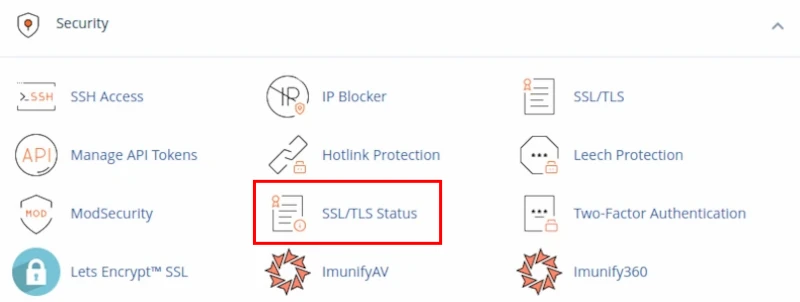
Scroll down to the Panel labelled Security.
Select the button labelled SSL/TLS Status.
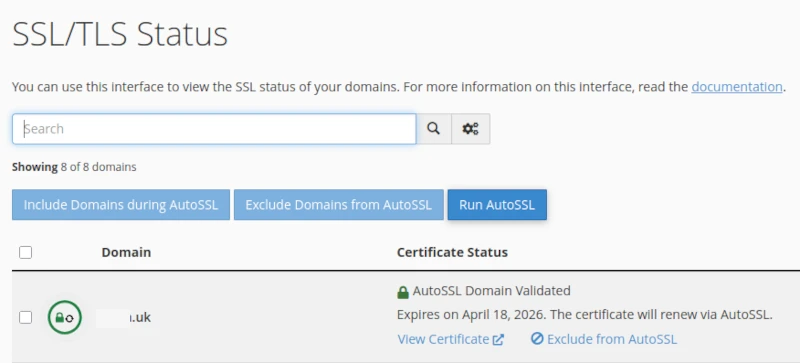
If the SSL/TLS Status is good then you will see several rows, with a green circle and a green padlock on each row.
If not then contact your hosting provider's Technical Support for assistance.
4) Discover the FTP Connection Details for the server hosting your website
These should be provided by your Hosting Provider when you opened your Hosting Account.
They should also be visible in your Hosting Account Client Area.
If you cannot see them listed anywhere then ask the hosting provider's Technical Support to confirm what they are.
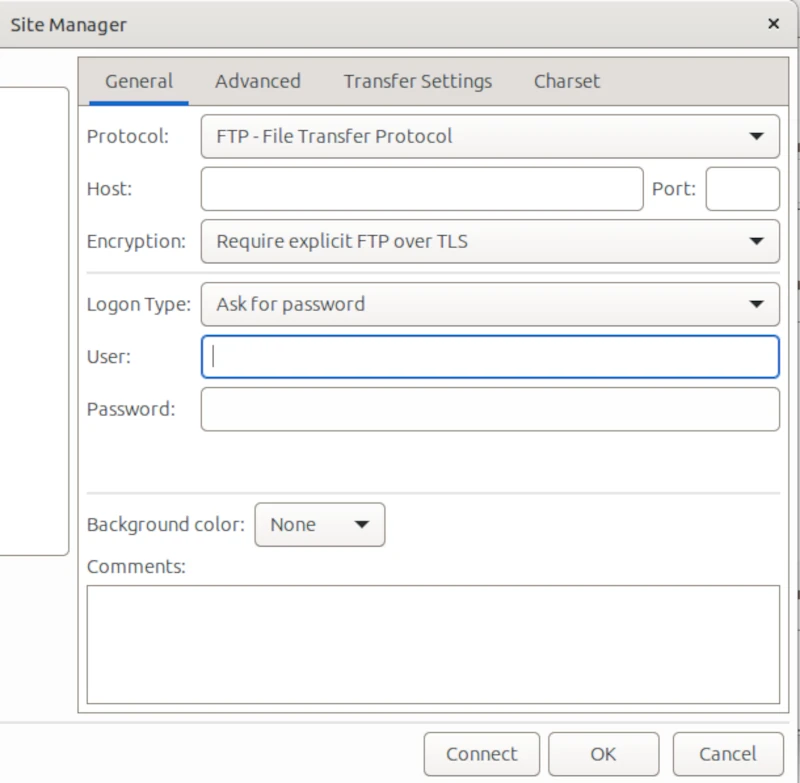
FTP Connection Details will be labelled as in this example
- Host: (ask your hosting provider).
- Port: (ask your hosting provider).
- User: Username (Hosting Control Panel or FTP username).
- Password: (Hosting Control Panel or FTP password).
5) That's it, you are now ready to connect to the server using FileZilla.
Connecting to the server
Important: before you begin, check the File Transfer Type = Binary
If you share the device you are using with others then check File Transfer Type = Binary every time you open FileZilla.
Reason: if Auto or ASCII transfer type is selected then your Backup Archives may be corrupted during transit.

There are two ways to connect to the server using FileZilla
Use the Quick Connect Bar if connection details include sftp://
If Host includes sftp:// then use the Quick Connect Bar to connect.
Add your Connection Details (host, port , username and password) and select Quickconnect.

Use the Site Manager Panel if they do not
If Host does not include sftp:// then use the Site Manager Panel to connect.
Site Manager can be opened when you select
- File > Site Manager
from the menu at the top of the FileZilla screen.
As well as adding your Connection Details (host, port , username and password) check in this instance that:
Protocol = FTP - File Transfer Protocol, and
Encryption = Require explicit FTP over TLS.
Select Connect.
Heads up: when you connect you may see a warning
If your domain is using a free Auto SSL certificate then it will be using an SSL certificate which is shared by other users of the server used by your website.
This will trigger a warning in FileZilla.
If you have:
- confirmed the SSL used by your domain is valid, and
- you are using the connection details provided by your hosting provider
then you can safely ignore such a warning.
Example warning: Unknown Certificate
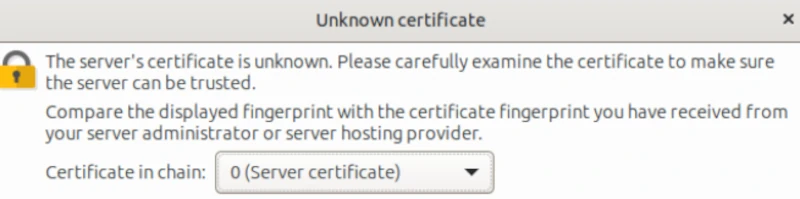
The Unknown Certificate will state 'Hostname does not match certificate'.

When you confirm the Unknown Certificate is valid then you will be able to connect to the server.
Example warning: Unknown Host Key
Select the 'Always' check box to avoid seeing the Unknown Host Key warning next time you connect.

Select OK to be able to connect to the server.
Transferring Files
How to download a Backup Archive from the server
We recommend storing Backup Archives on the server in a sub-directory of the Home directory, outside the Domain Root.
- The Domain Root on a cPanel server is the public_html directory.
In this example, Backup Archives are stored in a sub-directory called mybackups.
To download files from the server:
- either highlight the files, right-click, and select Download, or
- highlight the files and drag them from right to left.
Take care to choose and label a destination folder on your device before you begin.

How to upload files to the server
Uploading files is just the opposite of downloading files.
Take care to choose the correct destination directory on the server before you begin.

Disconnecting from the server
Close the connection
 Click this button in the menu at the top of the FileZilla screen.
Clear FileZilla's short term memory
Click the arrow next to the Quickconnect button, and
- select Clear quickconnect bar
- select Clear History
every time before you close FileZilla.

User Guide
If you want to know more, the developer provides a useful guide at the link below.
Read more: FileZilla Project User Guide
JOOMLERS.UK is sponsored by WYNCHCO Solutions
WYNCHCO Solutions help and support managers responsible for Joomla! CMS websites in UK business and third sector organisations across Cheshire, Greater Manchester, Merseyside and North West England.


