SpamExperts

email accounts spam filters

Heads Up

SpamExperts, when enabled, requires active management.

And especially so if you rely on your email for your business.

Open SpamExperts

First, sign into SpamExperts via your Hosting Control Panel.

Note

Create a SpamExperts password.

You will then be able to sign into SpamExperts when you visit the following URL: strikemail.co.uk.

Getting Started

The following illustrations will help you get started.

Tip: click on most images to view a larger more detailed version.

How to activate the SpamExperts Quarantine

After signing into SpamExperts you will see the STRIKE eMail Protector screen.

Select Filter Settings from the left sidebar.
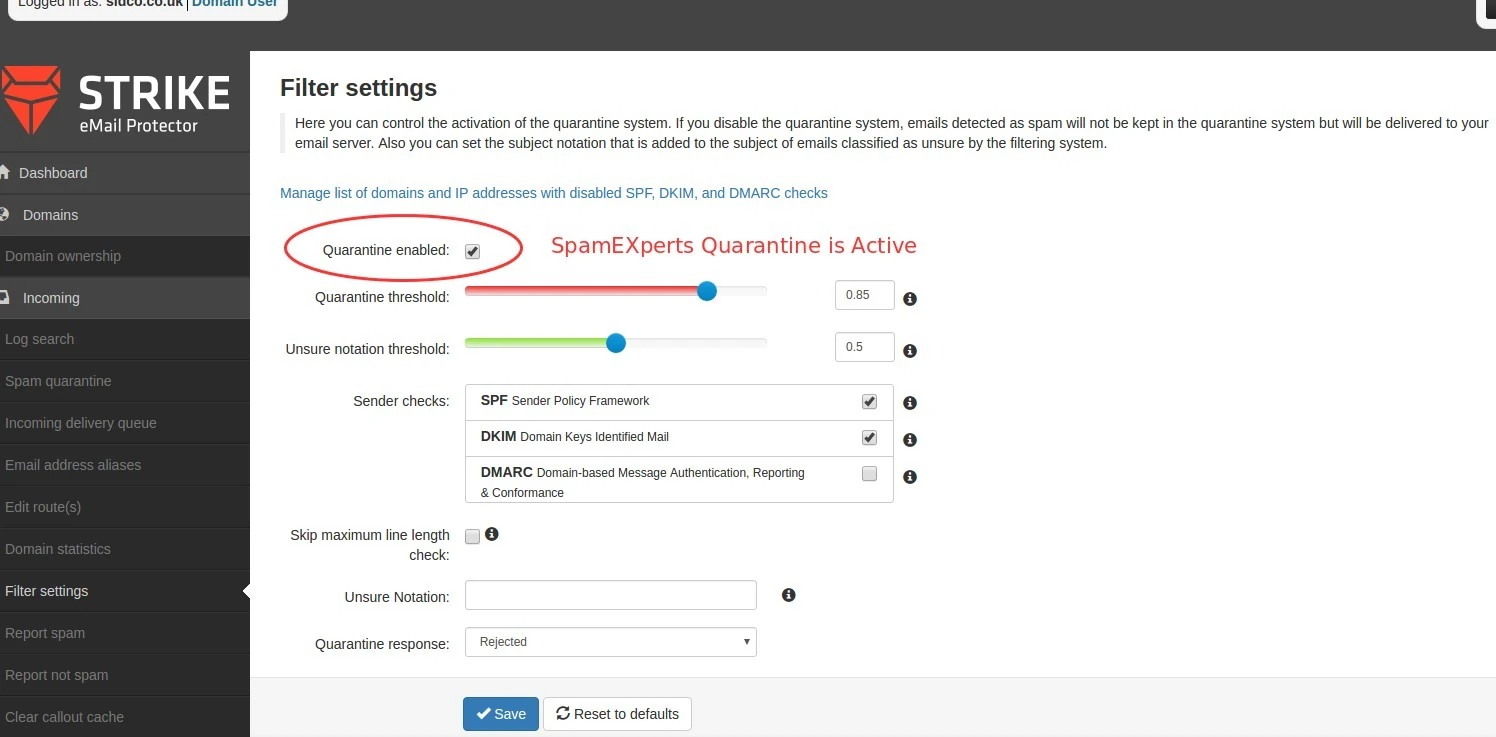
spamexperts filter settings quarantine active

How to de-activate SpamExperts Quarantine

After signing into SpamExperts you will see the  Strike eMail Protector screen.

Select Filter Settings from the left sidebar.
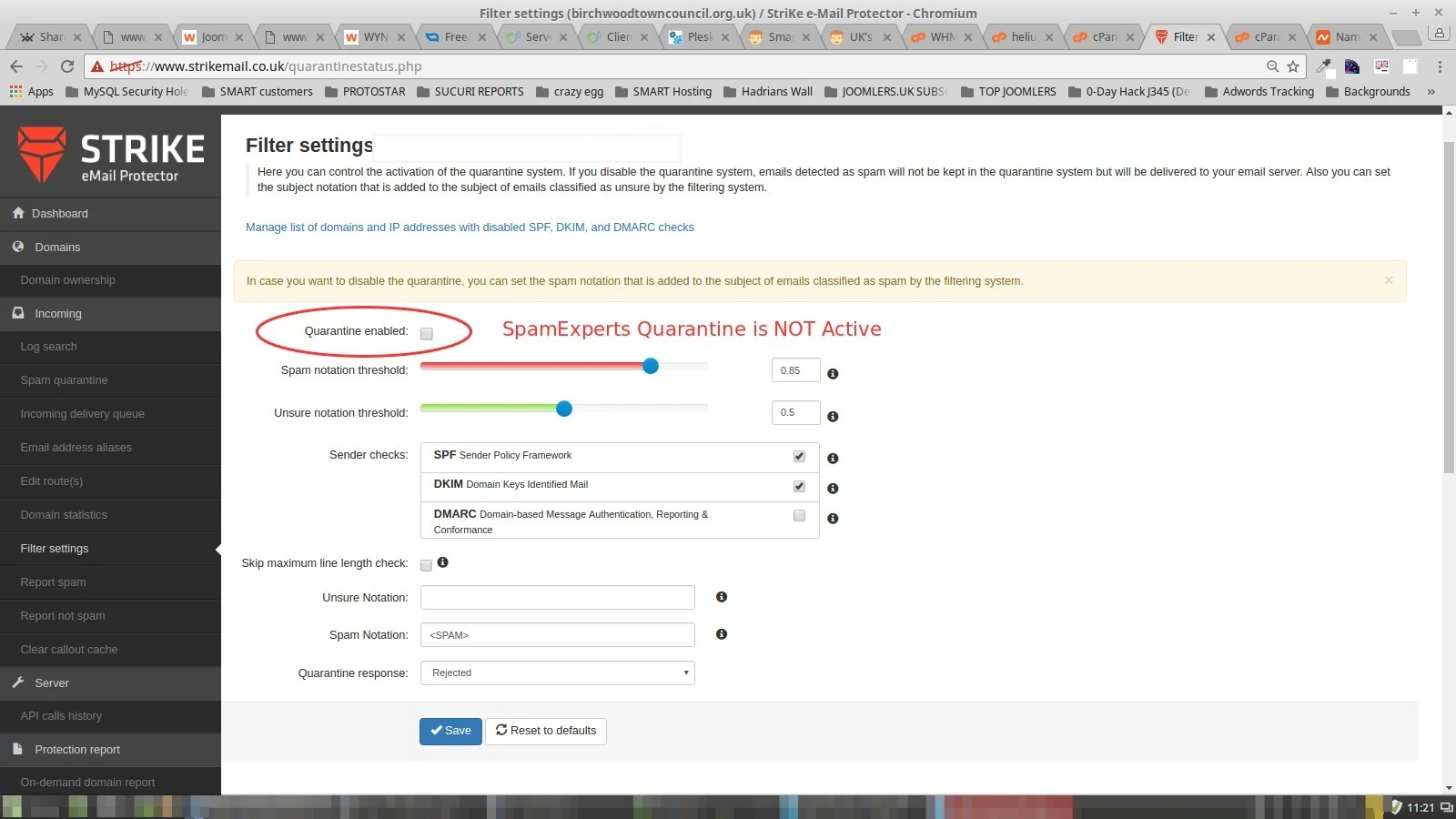
spamexperts filter settings quarantine not active

How to whitelist senders from whom mail has been quarantined

If you run a business then you should frequently check the SpamExperts Quarantine for legitimate mail and whitelist legitimate contacts.

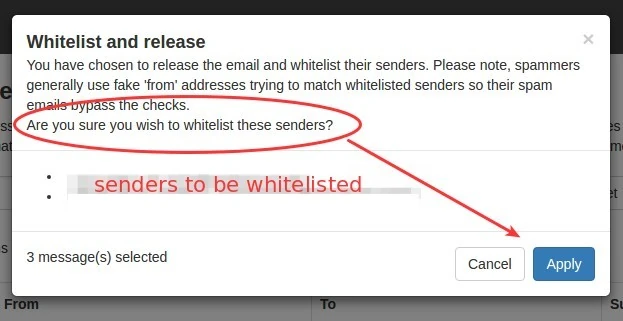
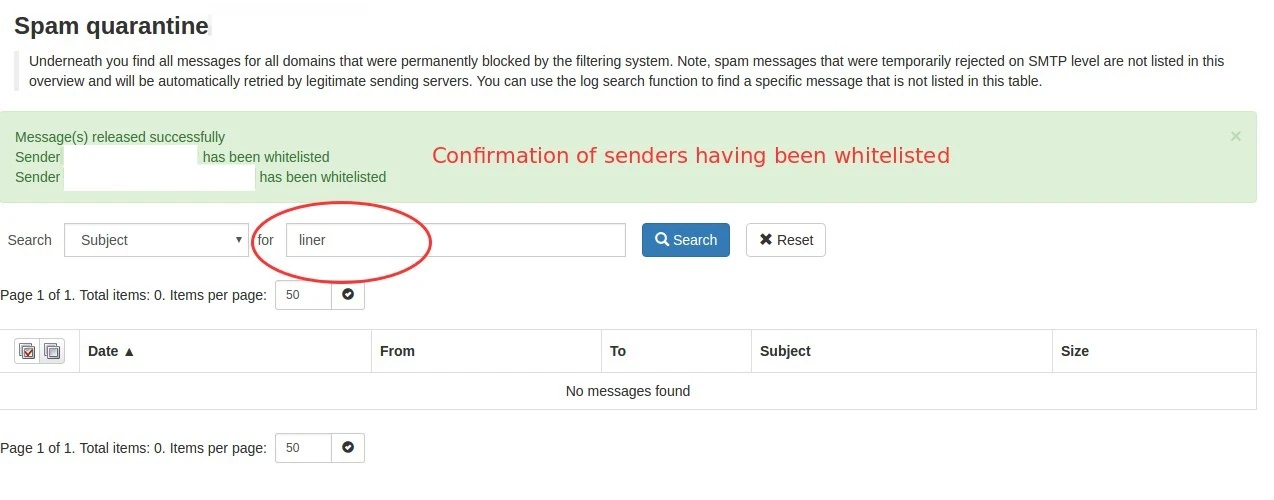
When you do - as in the example below - any listed quarantined mail will be allowed through to your INBOX.

Future mail from whitelisted contacts will not be blocked.

Step 1

After signing into SpamExperts you will see the  Strike eMail Protector screen.

Select Spam Quarantine from the left sidebar.

Step 2

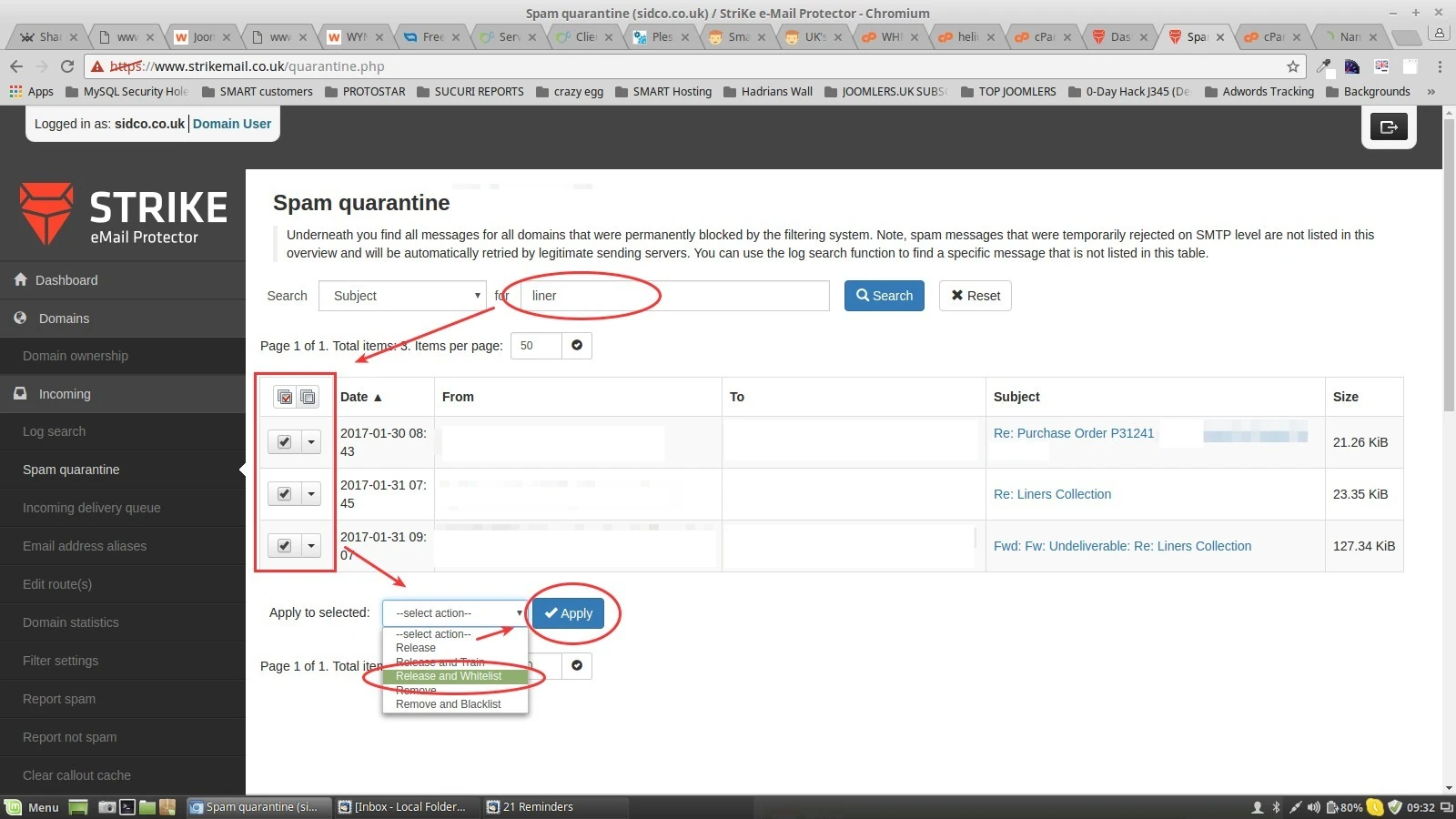
Use the filters to identify specific senders or subjects.

In this example we will whitelist the senders of email with LINER in the subject line.
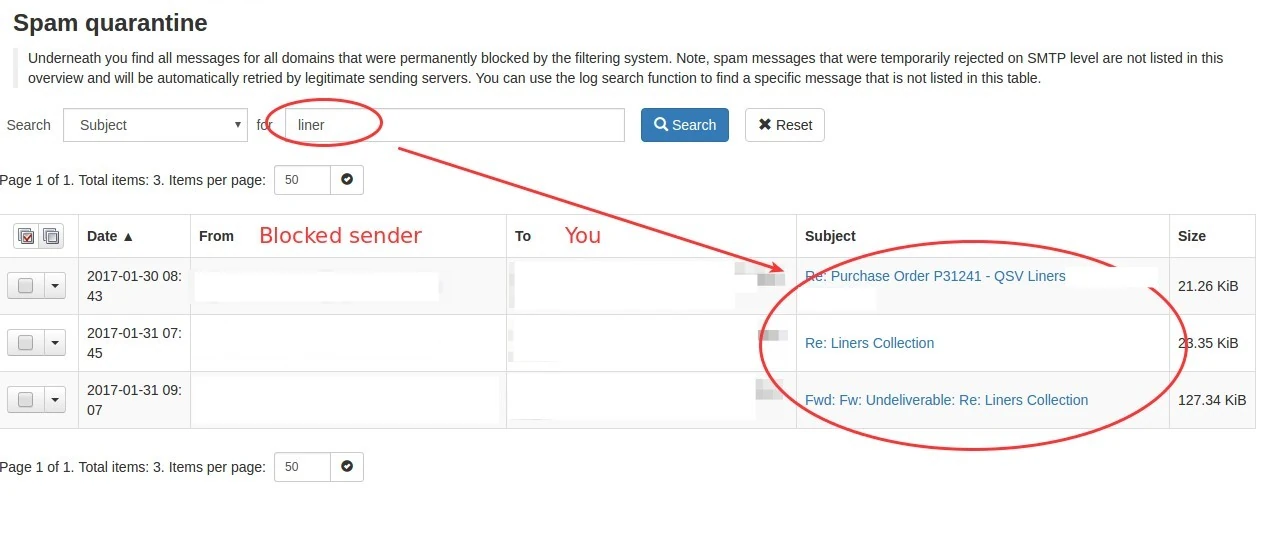
spamexpert quarantine review 1

Step 3

spamexpert quarantine review 2

Step 4

spamexpert quarantine review 3

Step 5

spamexpert quarantine review 4

How to mark mail identified as spam

SpamExperts will add a label to the subject line of mail it identifies as spam.

When SpamExperts is de-activated you will see mail identified in this way in your inbox.
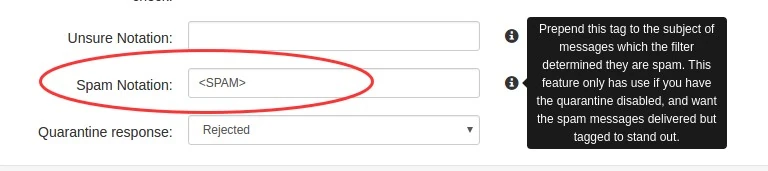
spamexperts filter settings quarantine not active mark spam

More useful links

Read more: SpamExperts Knowledgebase

Read more: SpamExperts User Guide

Read more: SpamExperts - an alternative user guide

JOOMLERS.UK is sponsored by WYNCHCO Solutions

WYNCHCO Solutions help and support managers responsible for Joomla! CMS websites in UK business and third sector organisations across Cheshire, Greater Manchester, Merseyside and North West England.

Read more: WYNCHCO Joomla! CMS Help & Support.

SpamExperts

email accounts spam filters

Heads Up

SpamExperts, when enabled, requires active management.

And especially so if you rely on your email for your business.

Open SpamExperts

First, sign into SpamExperts via your Hosting Control Panel.

Note

Create a SpamExperts password.

You will then be able to sign into SpamExperts when you visit the following URL: strikemail.co.uk.

Getting Started

The following illustrations will help you get started.

Tip: click on most images to view a larger more detailed version.

How to activate the SpamExperts Quarantine

After signing into SpamExperts you will see the STRIKE eMail Protector screen.

Select Filter Settings from the left sidebar.

spamexperts filter settings quarantine active

How to de-activate SpamExperts Quarantine

After signing into SpamExperts you will see the  Strike eMail Protector screen.

Select Filter Settings from the left sidebar.

spamexperts filter settings quarantine not active

How to whitelist senders from whom mail has been quarantined

If you run a business then you should frequently check the SpamExperts Quarantine for legitimate mail and whitelist legitimate contacts.

When you do - as in the example below - any listed quarantined mail will be allowed through to your INBOX.

Future mail from whitelisted contacts will not be blocked.

Step 1

After signing into SpamExperts you will see the  Strike eMail Protector screen.

Select Spam Quarantine from the left sidebar.

Step 2

Use the filters to identify specific senders or subjects.

In this example we will whitelist the senders of email with LINER in the subject line.

spamexpert quarantine review 1

Step 3

spamexpert quarantine review 2

Step 4

spamexpert quarantine review 3

Step 5

spamexpert quarantine review 4

How to mark mail identified as spam

SpamExperts will add a label to the subject line of mail it identifies as spam.

When SpamExperts is de-activated you will see mail identified in this way in your inbox.

spamexperts filter settings quarantine not active mark spam

More useful links

Read more: SpamExperts Knowledgebase

Read more: SpamExperts User Guide

Read more: SpamExperts - an alternative user guide

JOOMLERS.UK is sponsored by WYNCHCO Solutions

WYNCHCO Solutions help and support managers responsible for Joomla! CMS websites in UK business and third sector organisations across Cheshire, Greater Manchester, Merseyside and North West England.

Read more: WYNCHCO Joomla! CMS Help & Support.

By browsing our website you agree to its use of cookies. Cookie Policy.