


Web Server Traffic Analysis Tools
The cPanel Hosting Control Panel offers a range of different traffic analysis tools.
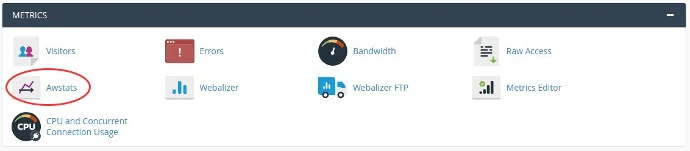
AWStats is one example of a Web Server Traffic Analysis Tool which you can use to monitor website visitors.
By way of example we will focus on AWStats in this article.
How to install AWStats
The following illustration shows how to install AWstats using a customised version of Cpanel as provided by Heart Internet.
The process may vary slightly depending upon which web hosting company you choose to host your website.
Select AWStats Statistics
Select AWStats from the Metrics panel after signing into the cPanel hosting control panel.
Enter a Directory Name
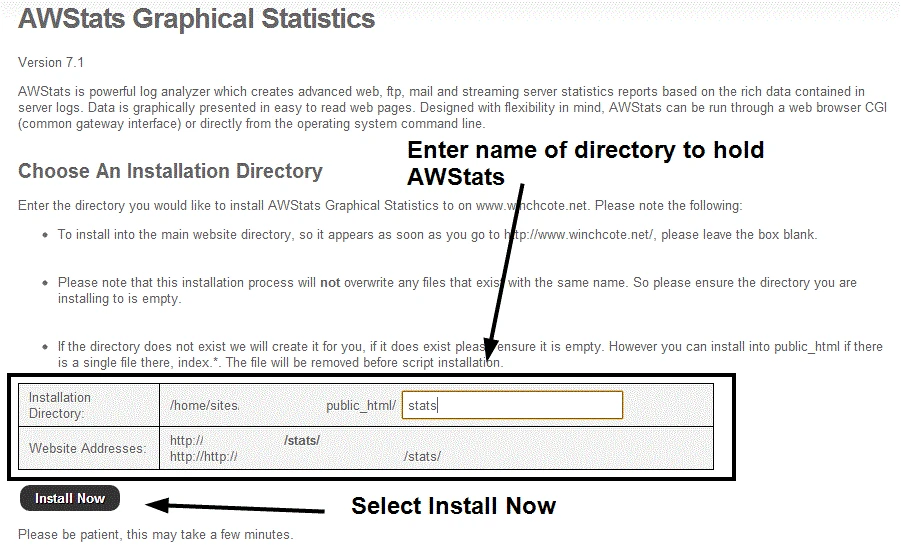
Commence Configuring AWStats
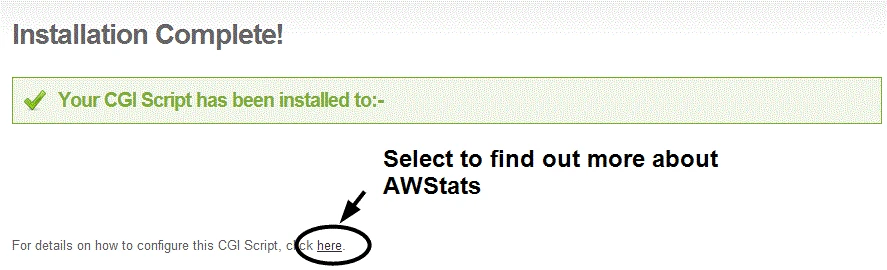
Important
Make sure you password protect the AWStats Directory to prevent others monitoring your website visitor traffic!
Address Security Issues
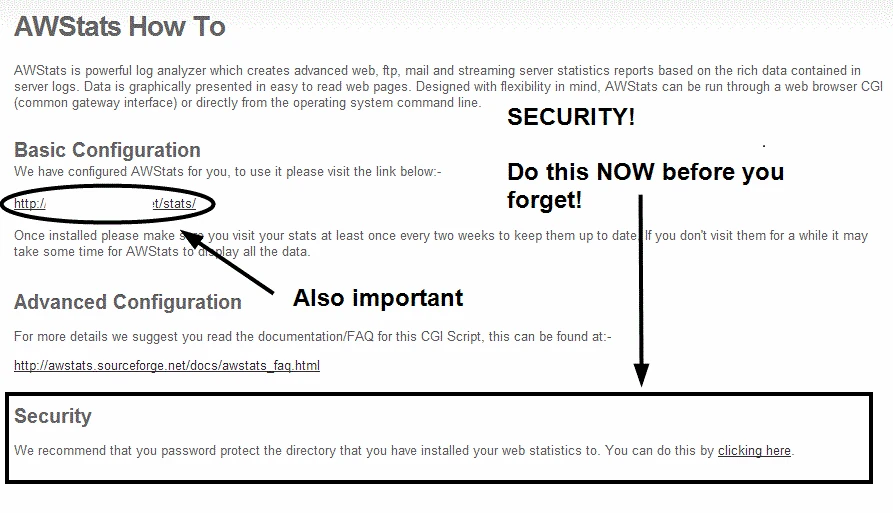
Password Protect the AWStats Directory
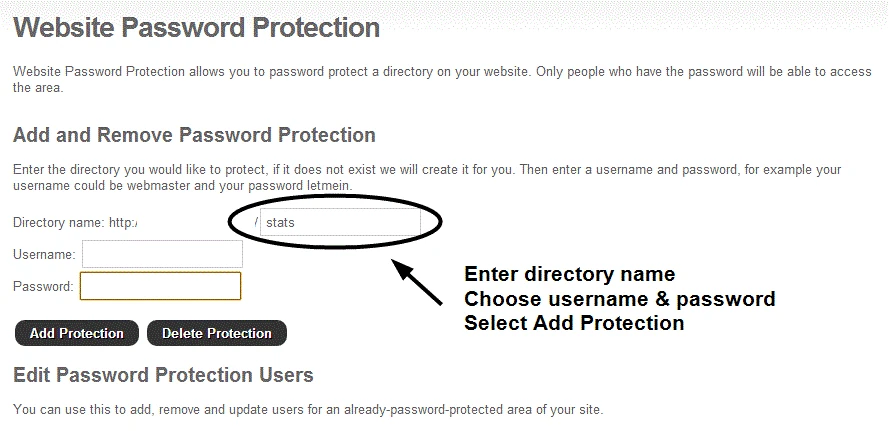
You can now safely monitor your website traffic whenever you visit your chosen directory and sign in.
Check Password Protection has been enabled
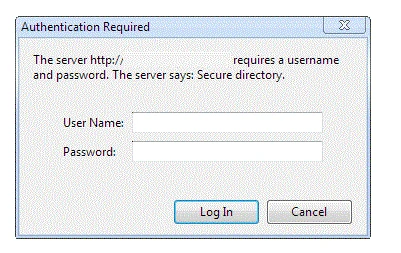
To view AWStats Data you must visit the AWStats directory in your browser address bar.
You will be prompted to sign in if pasword protection is enabled.
Example
http://yourdomain/your-directory
Replace
yourdomain with your website address
and
your-directory
with the name of the directory where you installed AWStats.
Note: if you are not prompted to sign in then you have forgotten to Password Protect the directory hosting your AWStats application.
You should address this issue immediately.


